What a free NFL Android app can actually do
The official NFL app is a useful starting point on Android for league news, scores and video highlights; ESPN is a practical alternative when you follow several sports. A free download does not mean free access to every live NFL game. The app, an NFL+ subscription and a television-provider login are different things, with different viewing permissions. For U.S. viewers, NFL+ includes eligible local and primetime regular-season and postseason games on phones and tablets, rather than every out-of-market Sunday matchup. This guide explains how to choose an app, install the official Android version and diagnose a blocked stream before paying again. Its service and device distinctions were checked on October 18, 2026; viewers outside the United States should check the rights offered in their own country.
Think of the app as a front door with several rooms behind it. Public scores and articles can coexist with subscription-only video. A live-game tile may be visible because the game is relevant to you, while the play button still requires an eligible plan or provider. Installing another copy of the same app does not change the rights attached to the account.
| Your goal | What to check |
|---|---|
| Scores, news and ordinary highlights | Free editorial features in the chosen app |
| A live game on an Android phone | Matchup, location, device and subscription eligibility |
| A complete replay | Replay access and availability after the telecast |
| A game on the living-room television | Television rights separately from mobile access |
NFL’s app-versus-subscription explanation makes that distinction explicit. You can use the app without treating every premium prompt as something you must buy. Decide which problem you want to solve first: knowing the score, seeing key plays or watching the full game. The first two usually require a different setup from the third.
Be equally careful with the word “highlights.” An ordinary editorial clip, an ad-free premium collection and a complete game replay are different products. The official plan comparison describes the additional replay and other benefits attached to NFL+ Premium. If your aim is simply to catch up on a few key plays, start with the available free material before choosing a subscription for a different purpose.
Choose the NFL app, ESPN or a team app for everyday coverage
For most Android users, one general app and an optional team app are enough. Choose by the information you want to see every day, then add a broadcaster’s app only when a game you plan to watch requires it. The following are practical editorial recommendations based on the official feature descriptions, not results from a speed or reliability benchmark.
NFL app: the league-focused starting point
The official NFL Google Play listing identifies NFL Enterprises LLC as the developer. It is a sensible first installation when football is the sport you follow most closely. The listed content includes league news and game highlights alongside the subscription features available through NFL+. Those can share the same app without sharing the same access rules.
Use the free coverage for a week before deciding whether a paid feature solves a real need. Open a score page, read a team update and play an ordinary highlight. This small trial reveals whether you like the navigation and the information density on your own phone. It is more relevant than downloading several similar apps because each promises “NFL live.” If an app offers a purchase, read which service is being sold and which account will hold it.
ESPN: a multisport score and news companion
ESPN’s Android listing describes scores, news, alerts and highlights across sports, together with paid viewing options. It is a useful choice if your NFL routine sits alongside basketball, baseball or college sports. Set the teams and alerts you actually want rather than assuming the default feed will match your interests.
Separate reading a game page from having permission to stream that game. An ESPN account, a subscription sold through the app and a television-provider connection can represent different parts of the experience. A familiar broadcaster logo beside a matchup is a reason to check the viewing requirement, not proof that the free app includes it. For this article’s purpose, ESPN is the broader information companion; its live-video offer needs a separate rights check for the particular event.
Official team apps: local reporting and stadium tools
A club’s own app can be more useful than a second league-wide score feed when you mainly follow one roster. As a concrete example, the Seahawks’ official mobile-app page describes team updates, a personalized profile and ticket access. Those functions serve a different purpose from a national streaming package. Check your club’s website for its own current app link and advertised features.
If you attend games, set up the relevant ticket account before traveling and follow the club’s entry instructions. If you watch from home, the reporting and team updates may be the main benefit. In either case, a team-branded app should not be assumed to provide unrestricted live video wherever you live. Keeping that expectation clear lets you use the local coverage without buying a service that fails to solve your viewing problem.
Live-game rights on Android and why casting differs
Before troubleshooting a live stream, identify the game, your location and the screen you want to use. “Android” describes a software platform; it does not describe a broadcast license. A phone, tablet and Android-based television device can run related apps while receiving different permissions.
NFL+ mobile games do not include every out-of-market matchup
The NFL’s live-game eligibility page distinguishes eligible local and primetime regular-season and postseason games on phones and tablets from out-of-market preseason viewing across supported devices. The preseason provision is not a promise that the same out-of-market access continues unchanged once the regular season starts.
Suppose your favorite club is playing on Sunday afternoon but the game is not carried in your local market. Owning an NFL+ subscription and installing the latest Android app do not, by themselves, add that matchup. YouTube’s Sunday Ticket explanation covers the separate package for eligible out-of-market Sunday afternoon regular-season games carried by CBS and FOX. Local games and national windows have their own access routes. Choose the service after identifying the game rather than buying whichever product has “NFL” in its name.
The same principle helps with highlights and audio. Hearing a game or watching a scoring clip does not establish full-game video rights. If a headline says an app has coverage of every game, examine whether “coverage” means live video, live audio, scores or replays. Those differences are often the explanation for a stream that appears missing even when the app is functioning properly.
Phone access does not automatically unlock your television
NFL’s specific live-game casting guidance says that the mobile local and primetime game access cannot be cast to a television. Purchasing the Premium tier does not turn those mobile game rights into unrestricted television rights. This is a product boundary, so changing a cable or reinstalling the Android app cannot create the missing entitlement.
That does not mean every NFL+ feature is limited to a phone. The broader connected-device guidance distinguishes content such as replays and eligible network programming from the mobile-only live-game offer. Check the particular content and supported device instead of applying one rule to every play button.
A useful test is to say the request in full: “I want to watch this local regular-season game live on my Android phone,” or “I want the completed game replay on my television.” Those are specific questions a provider can answer. “Does the NFL app work?” is too broad. If your actual goal is a live living-room broadcast, confirm a television viewing route before subscribing for a phone-based benefit.
Install the official NFL app and prepare it before kickoff
Do the first installation while you have time to check an account, receive a recovery email and test a video. NFL’s Android download instructions point to Google Play. If you reach the listing through a search, verify the publisher rather than judging by the football icon alone.
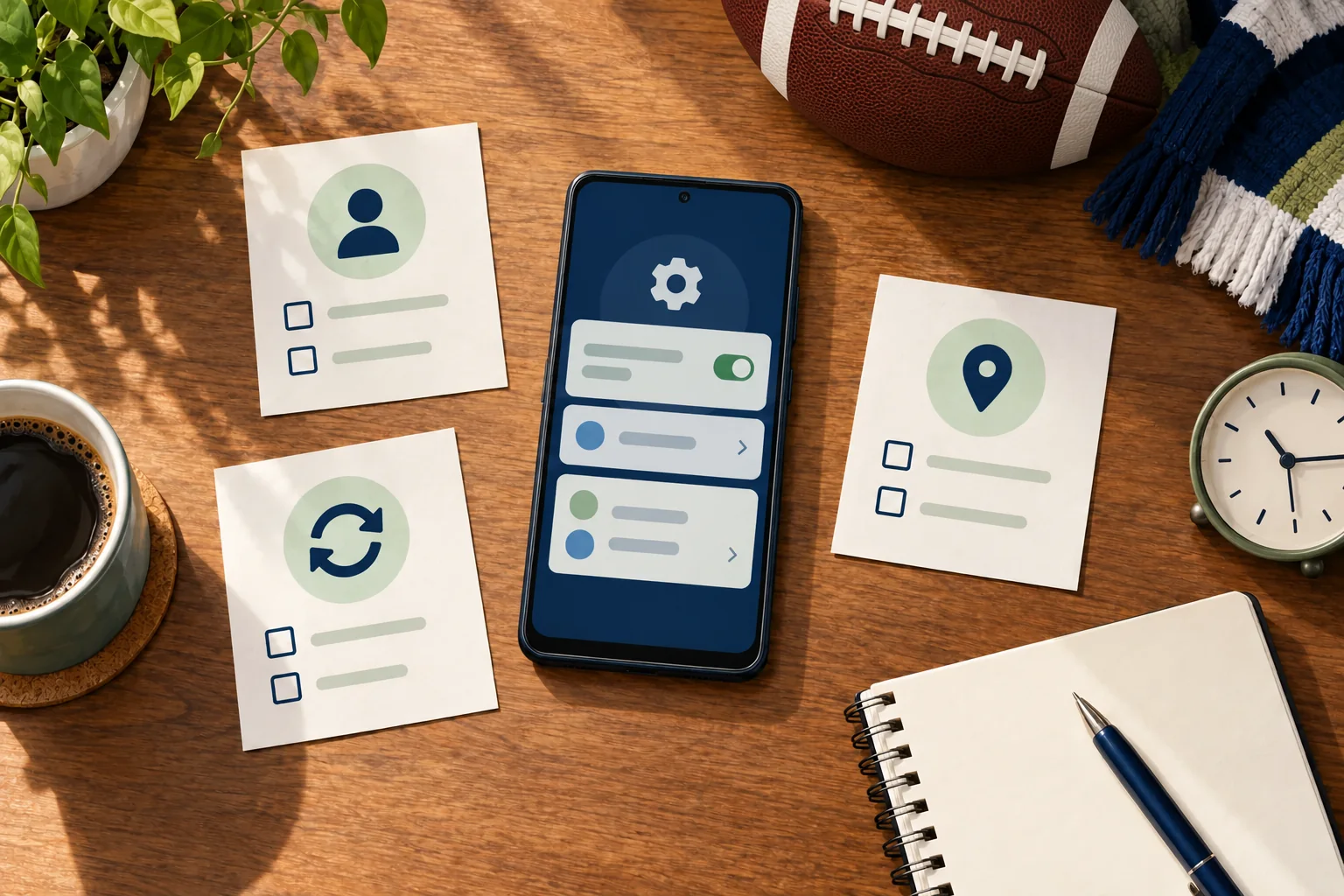
- Open the official source. Use the league’s app link or the verified NFL Google Play listing. Avoid choosing a different app merely because its title adds “free live.”
- Check compatibility on your phone. Consult the current NFL device requirements and the Play Store’s compatibility message before buying a plan for that device.
- Install or update. Google’s update instructions explain the Play Store’s app-management route. Menu names can change with the Android version and manufacturer.
- Use the intended account. If you already subscribe, sign in to that account. Keep the purchase receipt available so that a Google Play charge and an NFL account do not become two disconnected mysteries.
- Review permissions deliberately. Choose useful score notifications and allow location access when a legitimate viewing check requires it. Google’s permission controls explain how to review or change access afterward.
- Test the relevant feature. An ordinary clip tests basic video playback; an eligible live event tests the subscription and location path. Passing one test does not guarantee the other.
Keep a note of the account email and purchase channel somewhere you can retrieve them. You do not need to store a password in a screenshot or send it to support. If you change phones later, reinstalling the app and recovering an existing account is a different task from purchasing the service again.
Finally, tune alerts to your viewing routine. A fan who watches a delayed replay may prefer fewer score notifications; someone following several games may want selected final scores and close-game updates. Start with a small number of alerts and expand them if they prove useful. The aim is a phone that helps you follow football without making every app demand attention at once.
Fix sign-in, location and playback problems in the right order
A purchase prompt, a location message and a spinning video are different symptoms. Save the exact wording before changing settings. Then work through the likely cause, testing after each change so you know which action helped. Repeating every possible fix at once makes the next failure harder to understand.
Check the account and subscription before paying again
If the app behaves as though you have no subscription, compare the signed-in email with the account used for the purchase. Check the receipt and the actual plan before assuming the payment failed. NFL’s paid-but-cannot-access guidance recommends confirming the correct account and, where appropriate, restoring an in-app purchase.
For an Android purchase, follow the official Android restoration instructions rather than creating another paid account. The Google account that handled a charge and the NFL login visible in the app are details worth checking separately. A receipt proves that a transaction occurred; it does not explain whether the current screen is using the matching identity or whether the requested game belongs to that plan.
Separate a location restriction from a connection problem
If the message identifies a market or location restriction, check the app’s location permission and the device’s location setting. A weak internet connection and an event that is unavailable in your market require different solutions. NFL’s common-solutions guide addresses app and connection troubleshooting, but an entitlement boundary remains a boundary after the connection improves.
Test an ordinary clip on the same connection. If it plays while one live game is blocked, return to the game’s eligibility rather than concluding that the whole phone cannot stream video. If several unrelated videos fail, test another normal connection you can use, taking mobile-data charges into account. Record whether the problem changes between Wi-Fi and mobile data. This is a way to isolate the fault, not a method for changing the market in which you are entitled to watch.
Repair the Android app after checking the entitlement
For a crash or persistent loading problem, start with a current app version, close and reopen the app, and restart the phone. Google’s installed-app troubleshooting guide also covers clearing cache and, when needed, reinstalling. Use the settings available on your own Android version rather than expecting every manufacturer to use identical labels.
Distinguish clearing cached files from clearing all app storage: the latter can remove local settings and require a fresh sign-in. Have your account access ready before taking that step. If the problem persists, contact the relevant service with the game, device model, Android version, app version, time and error message. Those details let support investigate a specific failure. A password or a second subscription is not a substitute for that information.
Build a practical Android setup around how you follow the NFL
If you mainly want scores and key plays, start with either the NFL app or ESPN and adjust a few team alerts. You can compare your information routine against the NFL games today page without subscribing to a live-video product you do not need. The successful setup is the one that answers your usual questions quickly, not the one with the most football apps installed.
If you follow one club closely, add its official team app for reporting and any relevant stadium functions. Keep the league-wide app only if it supplies something useful alongside that coverage. For example, you may want league scores in one place and local roster reporting in another. Two tools with clear jobs are easier to manage than several apps sending the same notifications.
If you want full live games, begin with the matchup on the NFL TV schedule. Identify the provider, confirm your local or out-of-market status, and verify the Android device and screen you intend to use. Only then choose or open the required subscription app. A quick test before kickoff is more useful than assuming last week’s working stream proves that this week’s game has identical rights.
For delayed viewing, the official replay instructions explain the NFL+ Premium route after a telecast. Review Android notification controls before the game if you want to reduce score alerts. Muting one app cannot guarantee a spoiler-free phone when another app or message can still reveal the result.
Before paying, state your requirement in one sentence: the content, the game, the location and the screen. Then confirm that the service actually meets it. Keep the purchase channel and account details available, and test access while there is time to fix a problem. That routine separates an app choice from a rights choice and makes both decisions easier.
Comments